How to Audit What Your WordPress Site Tells a Stranger
Website security advice for small businesses is mostly vibes. Install this plugin, use a strong password, keep things updated. None of it tells an owner where their own site actually stands this morning. The checks below do, they run against a domain you already control, and every one of them comes from documentation the WordPress project publishes itself. One of them quietly contradicts how almost every small business site is set up.
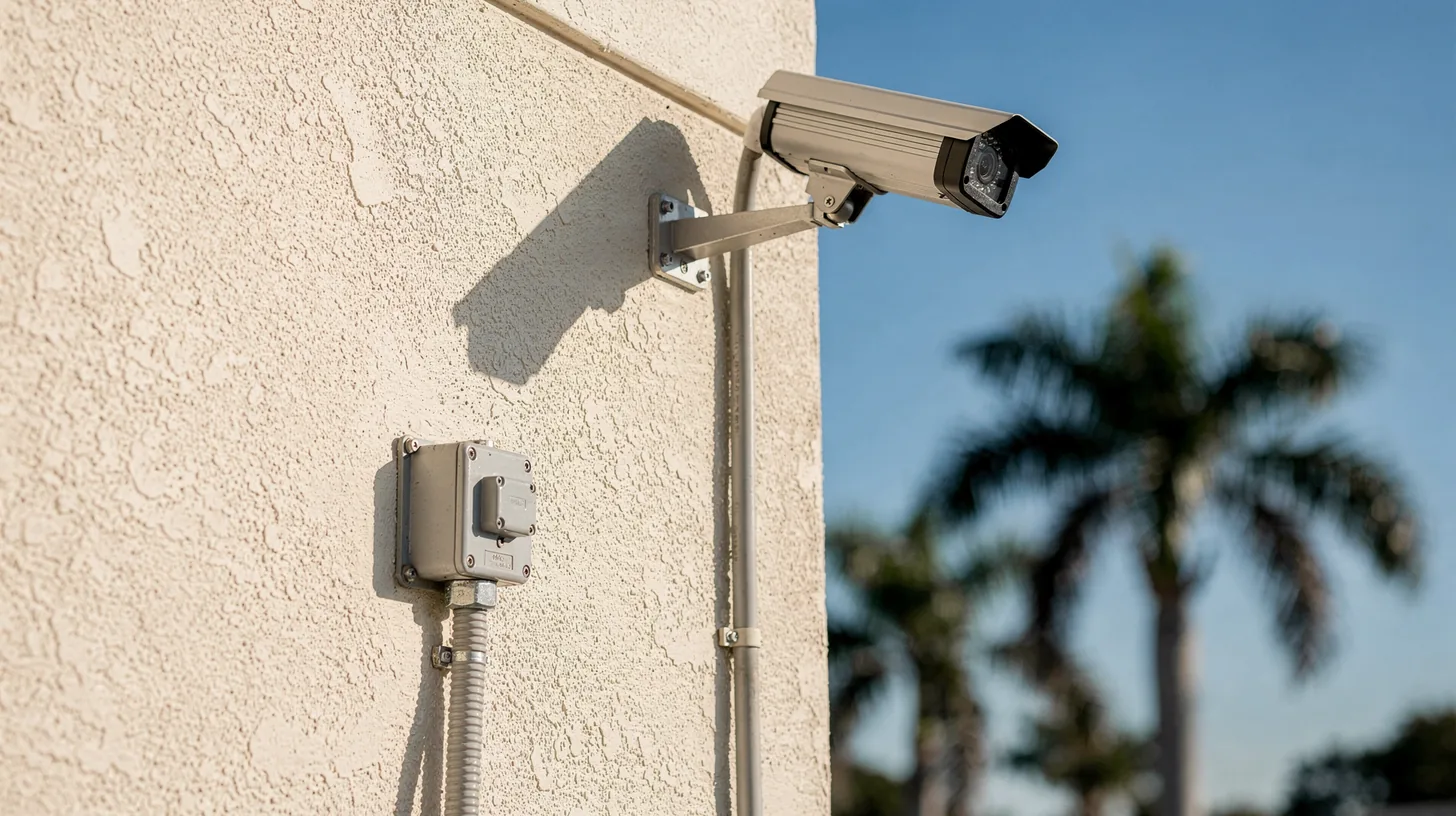
The camera is on the outside wall. Almost every small business website puts its equivalent inside the building, which is the argument this whole audit ends up making.
In one paragraph
A WordPress security self-audit is a set of read-only checks an owner runs against their own site to see what it discloses publicly and which standard protections are actually present. It is not a penetration test and it proves nothing about safety, but it reliably finds the gaps that are both common and cheap to close.
01 / 06
Start With What Your Home Page Announces
View the source of your own home page and search for the word generator. A default WordPress install publishes its version number there, and ships a readme file at the root that does the same. Removing both is worth doing, but be clear about why: it reduces how easily you are sorted into a list, and it is not security.
Open your site in a browser, view the page source, and search the text for generator. On a default install you will find a meta tag naming WordPress and its version number. Then request the readme file at the root of your domain. If it loads, it names the version too.
Now the honest part, because this is where most security advice oversells. Knowing your version number does not let anyone into your site. What it does is sort you. Automated scanning is a filtering problem before it is an attack problem, and a site that answers the version question for free is cheaper to categorize than one that does not.
Which is also why this check is first and least important. Your core version is rarely the thing that matters anyway. Patchstack recorded 11,334 new vulnerabilities across the WordPress ecosystem in 2025, with 91 percent of them in plugins and only 6 reported in WordPress core (Patchstack, 2026). The front door is not usually the problem. The extensions are.
Do it because it takes a minute and costs nothing. Do not do it and then believe you have hardened anything.
02 / 06
What the Public User List Does and Does Not Give Away
Request the users endpoint on your own domain. WordPress documents the default view context as returning id, name, slug, description, link and avatar_urls, while username, email, first_name, last_name and roles are restricted to the edit context and require authentication (WordPress REST API Handbook, 2026). Your email address is not exposed. Your author slug is, and on a default install that slug came from a login name.
Add /wp-json/wp/v2/users to your own domain and load it. Most WordPress sites return a small block of data describing every user who has published something.
Be precise about what that block contains, because this check gets exaggerated constantly. WordPress documents the default view context as exposing id, name, slug, description, link and avatar_urls, and keeps username, email, first_name, last_name and roles in the edit context, which requires authentication (WordPress REST API Handbook, 2026). Nobody is reading your email address out of it and no password is involved.
What you are looking at is a display name and an author slug. On an install where nobody changed the defaults, that slug was generated from the account login. So the endpoint has not leaked a credential, it has removed the guessing from one half of a credential pair, and left the other half to be attacked directly.
That only matters because of what the next check usually finds. A known account name against a login form with no rate limiting is a materially different situation than a known account name behind one that stops after five tries. Treat this as a finding to be paired, not a crisis on its own.
The fix is unglamorous. Make sure the public author slug is not the same string as the account you log in with, and disable the endpoint if your site has no reason to serve it. Neither takes long, and neither is worth doing before the two items below.
03 / 06
WordPress Tells You to Rate Limit at the Edge
WordPress’s own brute force guidance says to rate-limit login attempts at the edge, at the WAF, CDN or web server, and adds that if your host or CDN does not do it at the edge, a security plugin can throttle attempts instead (WordPress Security Guidance, 2026). Read the order. Edge first, plugin as the fallback. Most small business sites run that backwards.
This is the check that changes how you should think about the rest, and it is not our opinion. It is what the WordPress project publishes.
Its guidance on brute force attacks describes the attack simply, as an attacker repeatedly trying username and password combinations until one works, and then gives the mitigation in a specific order: rate-limit login attempts at the edge, at the WAF, CDN or web server, and if your host or CDN does not rate-limit at the edge, a security plugin can throttle login attempts (WordPress Security Guidance, 2026).
That second clause is written as a fallback, and it is the arrangement nearly every small business site actually has. Nothing sits in front of the site. A plugin inside WordPress does the throttling, which means every attempt still arrives at your server, still starts PHP, still touches the database, and is only then refused. The defense is running inside the thing it is defending, and it is itself a plugin, in the category that accounted for 91 percent of the 11,334 vulnerabilities Patchstack counted in 2025 (Patchstack, 2026).
So check two things. First, is anything in front of your site at all, which you can usually tell from the response headers your domain returns or from whether your DNS points at a proxy rather than straight at an origin server. Second, is your login form rate limited by that layer or by a plugin, and if the honest answer is neither, you have found the most consequential gap in this whole list.
The same page names a companion problem worth checking while you are there. It says the XML-RPC file is a frequent brute force target, singling out the system multicall method, and that if you do not use XML-RPC you should disable it (WordPress Security Guidance, 2026). Request that file on your own domain. If it responds and nothing in your workflow needs it, turning it off removes an entry point that most sites are not using for anything.
04 / 06
The Plugin Inventory Nobody Keeps
List every plugin, then look up when each was last updated by its developer. Patchstack reports 46 percent of vulnerabilities were not fixed in time for public disclosure, and a weighted median time to first exploit of 5 hours (Patchstack, 2026). WordPress’s own hardening guidance is blunt about the unused ones: if you are not using a specific plugin, delete it from the system (WordPress Hardening Guide, 2026).
Open your plugins screen and count. Then, for each one, find its listing and check the date it was last updated and which WordPress version it was last tested against.
You are looking for two categories. Plugins that are actively maintained, which is the normal case and fine. And plugins that have not been touched in a year or more, which are the ones worth acting on, because the update you are relying on may not be coming.
That is the number in this whole audit that most changes what maintenance can achieve. Patchstack found that 46 percent of vulnerabilities were not fixed in time for public disclosure, and puts the weighted median time to first exploit at 5 hours (Patchstack, 2026). Applying updates promptly is genuinely good practice, and it does nothing at all when there is no update to apply, and very little when the window is measured in hours rather than weeks.
Then deal with the ones you are not using, and note the wording WordPress uses. Its hardening guidance says that if you are not using a specific plugin, you should delete it from the system (WordPress Hardening Guide, 2026). Delete, not deactivate. A deactivated plugin still has its files sitting on disk and still has those files reachable by request, which is precisely why the documentation tells you to remove it rather than switch it off.
Most sites we look at carry several plugins nobody has opened in years, installed to solve something that was solved differently later. Every one of them is code you are responsible for and are not watching.
05 / 06
Two Controls That Are Not On by Default
WordPress states plainly that core does not ship two factor authentication (WordPress Security Guidance, 2026), so unless somebody added it, your site does not have it. The second control is a backup you have actually restored, kept somewhere other than the server it is protecting.
The first one is a single sentence in the documentation and it settles the question. WordPress core does not ship two factor authentication (WordPress Security Guidance, 2026). It is not disabled, it is not hiding in a settings tab, it is simply not there unless somebody deliberately added it.
That is worth sitting with next to the two earlier findings. If your author slug came from your login, and your login form has nothing rate limiting it, and there is no second factor, then a password is the entire defense on the account that can edit everything. Adding a second factor is the single highest value item on this page and the cheapest.
The second control is backups, and the check is not the one people run. Everyone asks whether backups are running. The questions that matter are whether anyone has ever restored one, and where they live. A backup stored on the same server as the site is not a backup for the situation where the server is the thing that went wrong, and a backup nobody has restored is a belief rather than a capability. Restore one to a staging location this quarter and you will know which you have.
While you are in the file system, the same hardening guidance is worth one more minute. It recommends that only you and the web server can read the configuration file, generally meaning a 400 or 440 permission, and notes you can move that file to the directory above the WordPress install (WordPress Hardening Guide, 2026). Both are small changes to the file holding your database credentials.
06 / 06
What to Do With a Result You Do Not Like
Fix in order of consequence, not order of ease. Two factor authentication and rate limiting in front of the login form first, then delete unused and unmaintained plugins, then the disclosure items. And be honest that this list finds common gaps rather than proving anything about safety.
If several of these came back badly, the temptation is to install something that claims to handle all of it. Work through them in order of consequence instead.
Two factor authentication on every account that can edit the site comes first, because it is the control that makes the account name and password questions much less interesting. Rate limiting in front of the login form comes next, and the WordPress guidance is explicit that the edge is where that belongs, with a plugin as the fallback rather than the plan (WordPress Security Guidance, 2026). Deleting plugins you do not use comes third, and it is the only item on this list that reduces how much code you are responsible for rather than adding more.
The disclosure items come last. Version numbers and author slugs are worth tidying, and tidying them is not protection. Anyone who sells you the reverse order is selling the visible work rather than the useful work.
Now the caveat this post owes you. Passing every check above does not mean your site is secure, and no honest audit could tell you that. These are the gaps that are common, that are documented by the vendor, and that cost almost nothing to close. They are a floor, not a verdict. If a site has already been compromised the problem is a different one, and the recovery sequence is covered separately in what happens when Google flags your site.
There is a structural point underneath all of it that is worth naming plainly. Every item here is a control being added to an application that has to defend itself while also serving your pages, and WordPress’s own guidance keeps pointing at the layer in front as the better place for that work. Moving the perimeter off the application is a different shape of answer than stacking more inside it, and it is how we build and host client sites in our site migration service, and it is the reason we build client sites the way we do.
If you would rather have this measured for you, our free audit reports what is actually reachable and readable on your domain, and it costs nothing.
Watch it work
Turn on what makes AI recommend you.
AI recommends the businesses it can read, trust and quote. Flip on the four signals we engineer, and watch your visibility climb and the answer rewrite itself.
THE FOUR SIGNALS WE ENGINEER
Illustrative · the four signals are the real system we build
Questions
This article, answered.
Jamie Kloncz · SEO Elite Agency, Naples
Not meaningfully. Removing the generator meta tag and the readme file makes your site slightly harder to sort into a list of targets, which is a small and genuine benefit, but it closes no vulnerability and stops no attack. Treat it as tidying rather than protection, and do the login and plugin items on this page first. The core version is rarely the exposure anyway, since Patchstack recorded only 6 vulnerabilities in WordPress core in 2025 against 91 percent of 11,334 found in plugins (Patchstack, 2026).
Jamie Kloncz · SEO Elite Agency, Naples
No. WordPress documents the default view context as returning id, name, slug, description, link and avatar_urls, and restricts username, email, first_name, last_name and roles to the edit context, which requires authentication (WordPress REST API Handbook, 2026). What is public is a display name and an author slug, and on a default install that slug was derived from a login name. That is a disclosure worth closing, but claims that the endpoint exposes emails or passwords are wrong.
Jamie Kloncz · SEO Elite Agency, Naples
WordPress’s own guidance treats it as the fallback rather than the first choice. It says to rate-limit login attempts at the edge, at the WAF, CDN or web server, and adds that a security plugin can throttle attempts if your host or CDN does not do it at the edge (WordPress Security Guidance, 2026). A plugin still lets every attempt reach your server and database before refusing it, and it is itself part of the plugin layer that accounted for 91 percent of the vulnerabilities Patchstack counted in 2025 (Patchstack, 2026).
Jamie Kloncz · SEO Elite Agency, Naples
Delete them. WordPress hardening guidance says that if you are not using a specific plugin, you should delete it from the system (WordPress Hardening Guide, 2026). A deactivated plugin still has its files on disk and still has them reachable by request, so switching it off removes it from your admin screens without removing it from your site. Deleting is the only one of the two that reduces what you are responsible for.
Jamie Kloncz · SEO Elite Agency, Naples
No. The documentation states that WordPress core does not ship two factor authentication (WordPress Security Guidance, 2026), so it is absent unless somebody deliberately added it through a plugin or an identity provider. On a site where the author slug reveals the account name and nothing rate limits the login form, that leaves a password as the entire defense on an account that can change every page. It is the cheapest high value fix on this list.
Sources
- 1WordPress Security Guidance (Advanced Administration, Brute force attacks): accessed August 30, 2026 - defines a brute force attack as an attacker repeatedly trying username and password combinations until one works; advises rate-limiting login attempts at the edge (WAF/CDN) or the web server, and states that if your host or CDN does not rate-limit at the edge, a security plugin can throttle login attempts; states that xmlrpc.php is a frequent brute-force target, especially the system.multicall method, and that it should be disabled if unused; states that WordPress core does not ship 2FA
- 2WordPress Hardening Guide (Advanced Administration, Hardening WordPress): accessed August 30, 2026 - advises that only you and the web server should be able to read wp-config.php, generally a 400 or 440 permission, and that the file may be moved to the directory above the WordPress install; states that if you are not using a specific plugin you should delete it from the system; states that older versions of WordPress are not maintained with security updates
- 3WordPress REST API Handbook: Users reference, accessed August 30, 2026 - the context parameter defaults to view, and the fields available in the default view and embed contexts are id, name, url, description, link, slug and avatar_urls; username, email, first_name, last_name and roles appear only in the edit context, which requires authentication
- 4Patchstack: State of WordPress Security in 2026, re-verified at source August 30, 2026 - 11,334 new vulnerabilities were found in the WordPress ecosystem in 2025, a 42 percent increase year over year; 91 percent were found in plugins and 9 percent in themes, with only 6 reported in WordPress core; 46 percent of vulnerabilities were not fixed in time for public disclosure; the weighted median time to first exploit is 5 hours

Written by
SEO Elite Agency, Naples FL. Published .
Check this page has not changed
Every article is hashed when the site is built. This recomputes the hash of its text in your browser and compares it with the published record.